Time a planning session
Choose how the room is timed — not at all, one clock for the whole meeting, or a timebox for each moment of an item — and run those clocks without handing the meeting over to a countdown.
A room is timed one of three ways, and it is a single choice: no timers at all, one clock for the whole ceremony, or a timebox for each moment inside an item.
Only one of those clocks ever does anything on its own. The rest stop at 0:00 and offer the moderator the moves that follow, which is the point — a timebox is there to make a twenty-minute story visible, not to end the conversation for you.
Before you start#
You need to be a moderator in the room to change how it is timed or to run a clock, or a Workspace manager to set it from the dashboard. Timers are on every plan.
Everyone in the room sees the clock — waiting at its configured duration as well as counting down. Only moderators start, pause, reset or extend one, so the controls beside it appear for them alone.
Choose how the room is timed#
Room settings ask How is this room timed? and offer three cards.
| Mode | What the room gets |
|---|---|
| No timers | Nothing on the clock. Run planning the way you do now. |
| Meeting timer | One clock for the whole ceremony, in the room header. Nothing on the stage. |
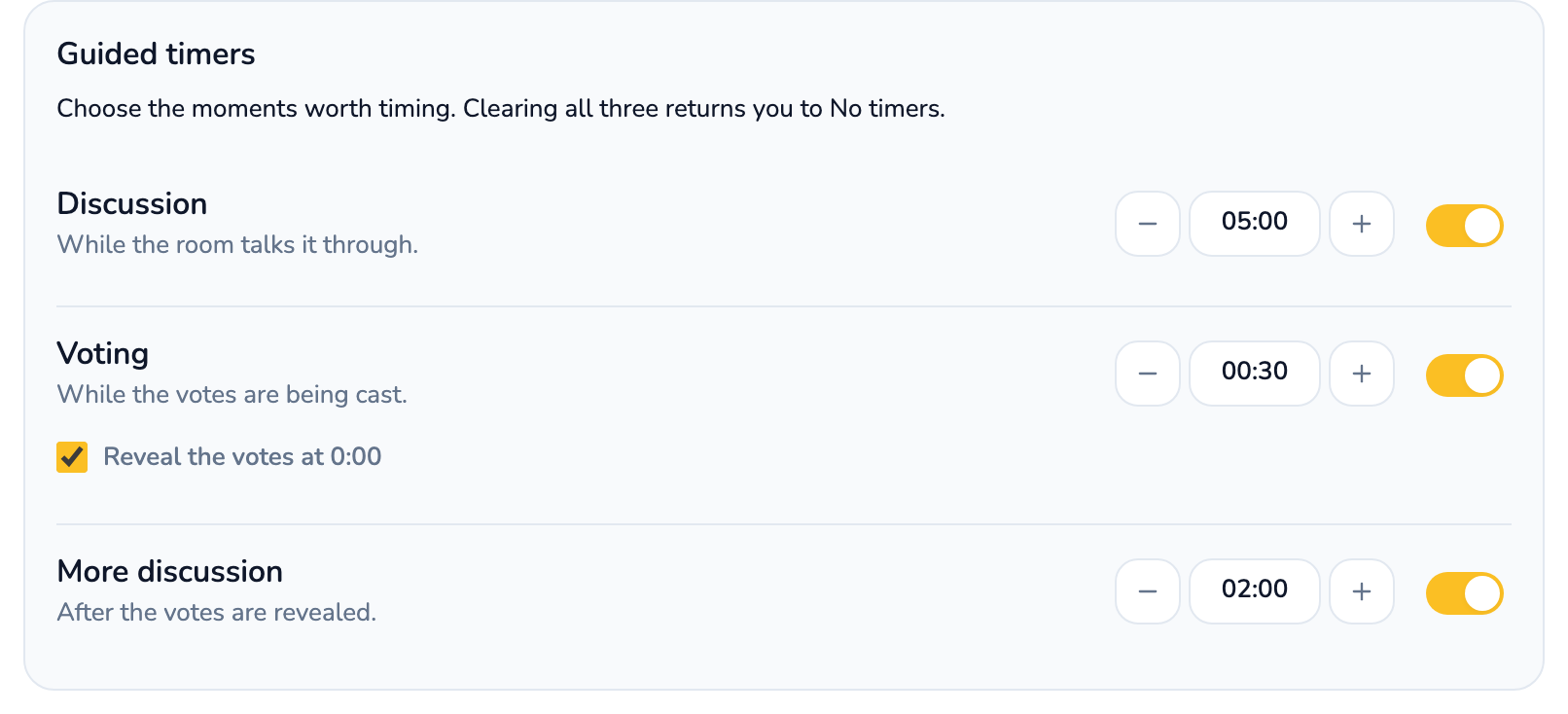
| Guided timers | A timebox for each moment inside an item — discussion, voting, and the conversation after the reveal — each one on or off. |
- Open the Room menu in the room header and choose Room settings.
- Under How is this room timed?, select a mode.
- Selecting Meeting timer reveals the meeting length; selecting Guided timers reveals Discussion, Voting and More discussion, each with its own duration and switch.
- Choose Save room settings. The change reaches every participant immediately.
The same three cards appear in the Customize your room panel a brand-new room opens with, and on the dashboard under Workspace Settings → Planning Room.
Durations survive a change of mind. A team that configures Guided timers, tries the Meeting timer for a sprint and switches back finds its 5:00 and 2:00 where they left them — the mode selects, it does not erase. Turning off the last Guided timebox returns the room to No timers, so there is one way to say "don't time us" rather than two.
Time the whole meeting#
Choose Meeting timer and a clock waits in the room header for a moderator to start it. Nothing starts it automatically, and participants see nothing until it runs.
- Select the clock in the room header.
- Pick the room's configured length at the top of the list, one of the presets
— 15, 30, 45, 60, 90 or 120 minutes — or type an exact length such as
1:15. - It starts counting.
Beside the time left, the chip shows how many items are still to estimate. That pairing is the whole reason to run this clock: four items and ten minutes is a decision, and neither number tells you that alone.
The meeting clock never ends anything. It turns amber at 10 min left, harder at final 5 min, and then keeps counting past zero as time over — "nine minutes over" is what a facilitator is actually managing, and a clock frozen at 00:00 is not. Pause and resume it from the chip, or clear it with the ×.
A length picked from the start list applies to this meeting only; the room's configured length in settings is left alone. The clock belongs to the session, so completing a session and starting the next one begins with a fresh, unstarted clock rather than last meeting's expired one.
Time each moment of an item#
Guided timers give the room one clock, in one place, for the whole of an item. A room times one moment at a time, so what the clock is timing changes as the item moves from discussion to voting to the conversation after the reveal — but where you look for it does not.
Nothing runs until a moderator presses play. Every timebox is present at its configured duration and doing nothing, which is what makes it safe to leave switched on: an unstarted clock changes nothing about the round.
Durations are 1 second to 59:59, and start at 5:00 for Discussion, 0:30 for Voting and 2:00 for More discussion. Change them in room settings, or from the settings button on the clock itself during a session.
Discussion#
Runs while the room is working the item out, before the votes are revealed. In a room where the moderator opens voting, this is the phase before that press; in a room where voting opens immediately, the clock carries a Discussion / Voting switch so a moderator can pick which of the two to run.
Voting#
The only timebox with a consequence at 0:00. Reveal the votes at 0:00 is on by default: the round reveals with whatever was cast, and anyone who did not vote is named as not having voted rather than credited with a card they never played. Turn it off and the countdown simply stops, leaving voting open until you reveal.
Opening voting starts this clock in the same press. Most rounds never reach 0:00, because a round reveals the moment every eligible person has voted — the voting clock is there for the straggler, not for the room.
More discussion#
Runs after the reveal and before the estimate is accepted: two minutes for the highest and the lowest voter to explain what they were each picturing. It is available after every reveal and highlighted when the spread is wide enough to be worth the conversation.
In a room that allows changes after the reveal — the default — people often just re-pick their cards while this clock runs, and the board converges without a formal re-vote at all.
Auto-start the discussion clock#
The pin on the Discussion clock arms it for the next item. Accept an estimate, the queue advances, and the item that takes the stage arrives with its discussion clock already running. Select the pin again to unpin it.
The pin fires on an accepted estimate and on nothing else. Parking an item, splitting one, making a different item active or removing the one on the stage all leave the next clock idle, because none of those is the room saying it is ready to talk about the next thing. Undoing an accept inside the 30-second window stops and resets the clock that accept started.
The dashboard carries the same switch under Auto-start the Discussion timer. A Workspace has one Planning Room, so that is a second door onto the room's own pin rather than a default for rooms yet to be created.
What happens at 0:00#
The Discussion and More discussion clocks both stop and offer the moves that follow. Every one of them is something the room could already do; nothing happens unless a moderator chooses it.
| Clock | At 0:00 the moderator sees |
|---|---|
| Discussion | Extend 3 min · Park it · Vote now |
| More discussion | Extend 2 min · Revote · Accept · Split |
| Voting, with nobody having voted | Give more time · Back to discussion |
- Vote now opens voting and starts the voting clock together. In a room that opens voting immediately it becomes Reveal now, and it is not offered at all while nobody has voted — there is nothing to reveal.
- Park it defers the item back to the queue keeping its place, and hands the item that takes the stage a full discussion clock rather than the spent one.
- Revote clears this round's votes and runs the same item again in place. It does not send the item back to the queue.
Everyone in the room is told a timebox lapsed. Only the moderator is offered the moves.
Moving between moments always starts a fresh timebox: a clock is never carried from discussion into voting and back again. Pausing voting to talk something through returns a full discussion clock rather than the twenty seconds that were left on the voting one.
Last updated