Planning poker that ends in a decision. And starts the next retro with context.

Bring real backlog items into a focused room, keep estimates independent until reveal, and write the accepted points back to Jira or Linear. The same Workspace keeps your Retro Room beside it, so planning evidence becomes fuel for improvement.

  • Hidden voting and clear reveal
  • Live and async estimation
  • Jira and Linear write-backPro

What the Planning Room includes

A complete path from backlog to accepted estimate

Every Workspace pairs a Planning Room with a Retro Room. Planning stays focused on the decision in front of the team, while the shared tracker connection carries useful context forward.

  • Unlimited participants on every plan
  • Hidden votes with moderator-controlled or automatic reveal
  • Six built-in estimate decks plus custom cards
  • Async voting windows with deadlines and reminders
  • Roles for Dev, QA, Observer, and Moderator
  • Completed-item history and CSV export
  • Jira and Linear import plus estimate write-back Pro
  • Historical trends and cross-session Retro Signals Pro

Start with Planning, then use the Retro Room beside it to turn delivery evidence into owned improvement actions.

How it works

Everything the Planning Room can carry

1Voting & decks

Vote privately, reveal together, decide as a team

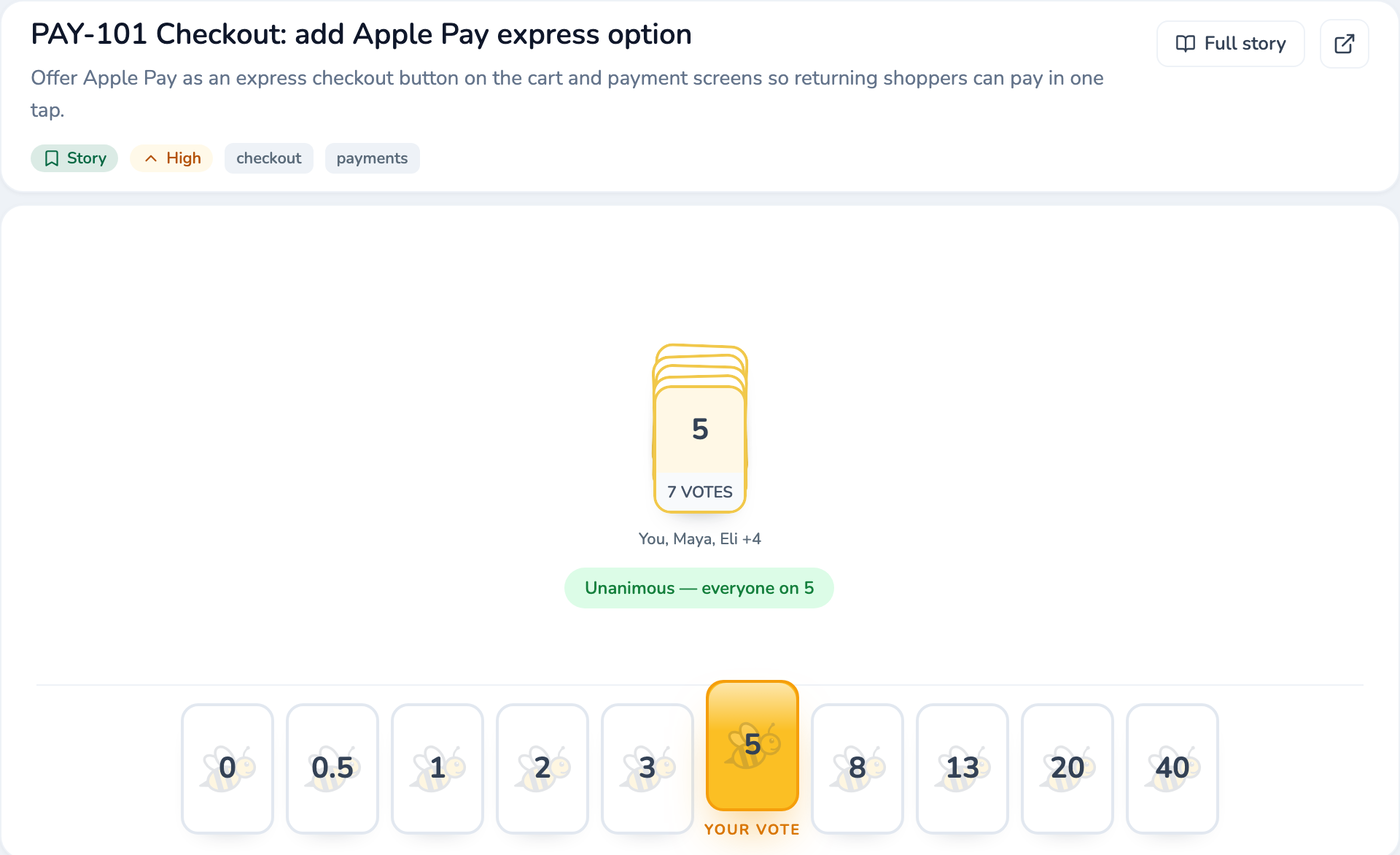
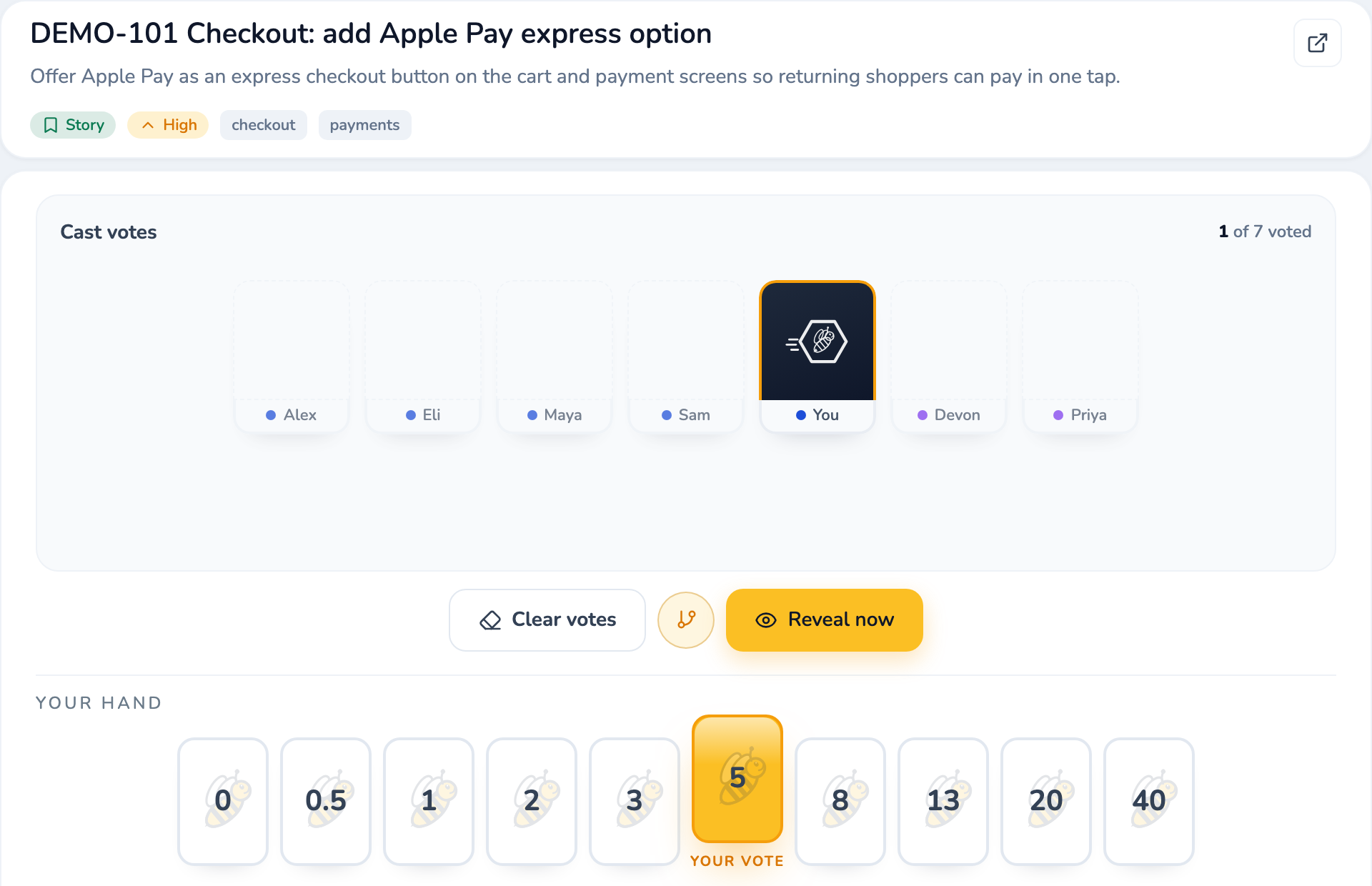
Pick a work item, discuss it briefly, then vote. Votes stay hidden from everyone — including moderators — until the reveal, unless a room turns on “Show votes live.” Click a card to vote, click it again to retract, or press a number key (1–9) to vote the matching card in your team's deck.

A moderator reveals once at least one vote is in, or the round reveals on its own once everyone eligible has voted. After reveal, the room shows one of four results — Consensus, Split, Wide Split, or No votes — so the team knows immediately whether to accept or keep discussing.

The hand above is the default Modified Fibonacci deck, one of six built-in decks (Fibonacci, T-Shirt Size, Powers of Two, Sequential, Hours) plus quick-add cards for “not enough info” (?), “too large to size” (∞), and opting out (Pass). Every deck is editable — add, remove, or reorder up to 15 cards, each up to 4 characters.
Compare every built-in deck in detail →

A SprintBee voting hand of Modified Fibonacci cards mid-round: one card selected as the current player's vote while teammates' votes stay hidden.

2Async estimation

Estimate on your own schedule, not just in the meeting

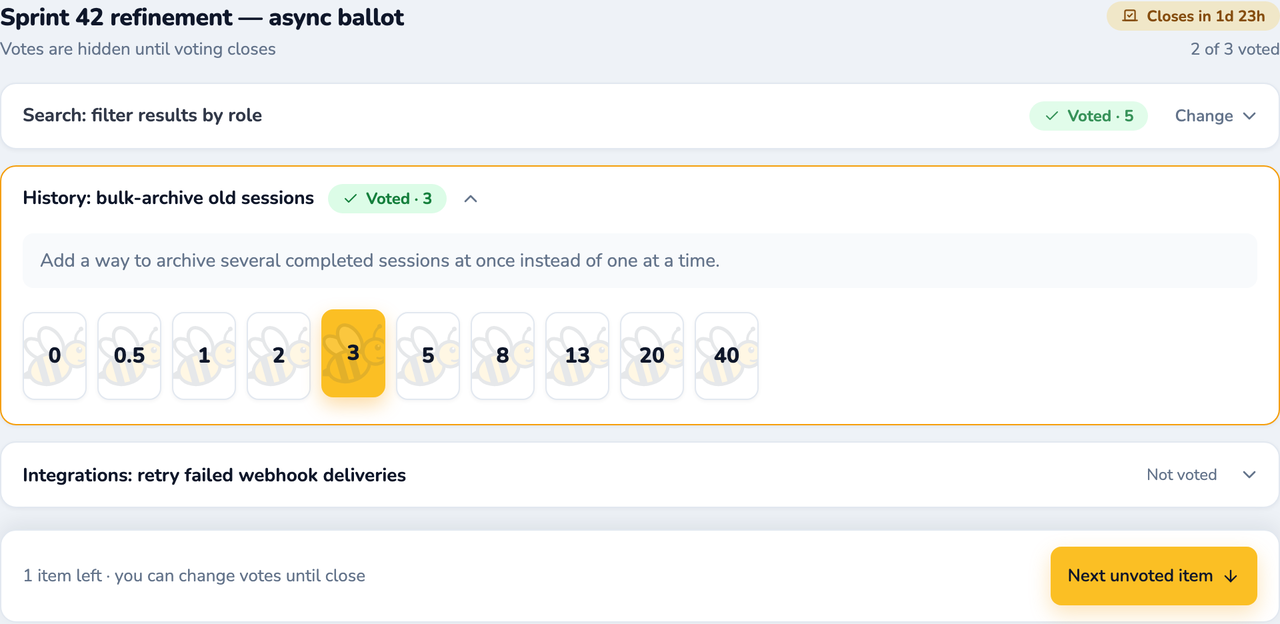
A moderator can open a voting window on a batch of queued items with a deadline — 24, 48, or 72 hours, or a custom time. Everyone votes independently whenever it suits them; votes stay hidden until the window closes by default (moderators can choose to show them live instead).

Set the window to auto-accept items where everyone agrees exactly, agrees within two neighboring deck positions, or leave it off so every item comes back for a live discussion. A single vote never auto-accepts on its own — SprintBee waits for at least two before calling it consensus. Anyone can opt in to a one-time email reminder before the deadline; it only needs an email address, not an account. This is free on every plan, Free included.

An async ballot: two items voted, one still open, with a close deadline and per-item receipts.

3Participants

Everyone gets a seat, and a role

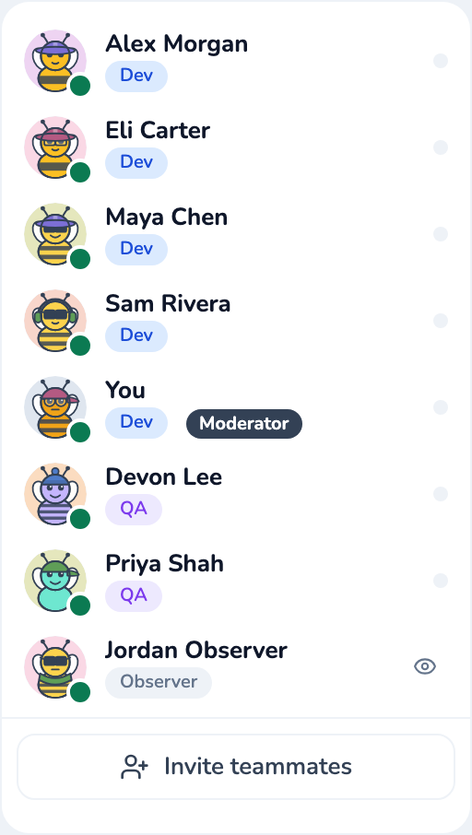
Share the room link or code — no account is needed to join and vote. Each person picks Dev, QA, or Observer when they join: Dev and QA vote, Observer follows along without ever blocking a round.

Moderator isn't a fourth role — it's a permission layered on top, grantable to more than one person from the Participants tab. If no one currently holds it, anyone can take it, and the Workspace owner can always reclaim it. A short reconnect grace period covers dropped connections, so a flaky network doesn't bump someone from the vote count.

The Participants panel listing teammates with their Dev, QA, or Observer role and a Moderator tag.

4Connected backlog

Bring the real issue into the room, context included

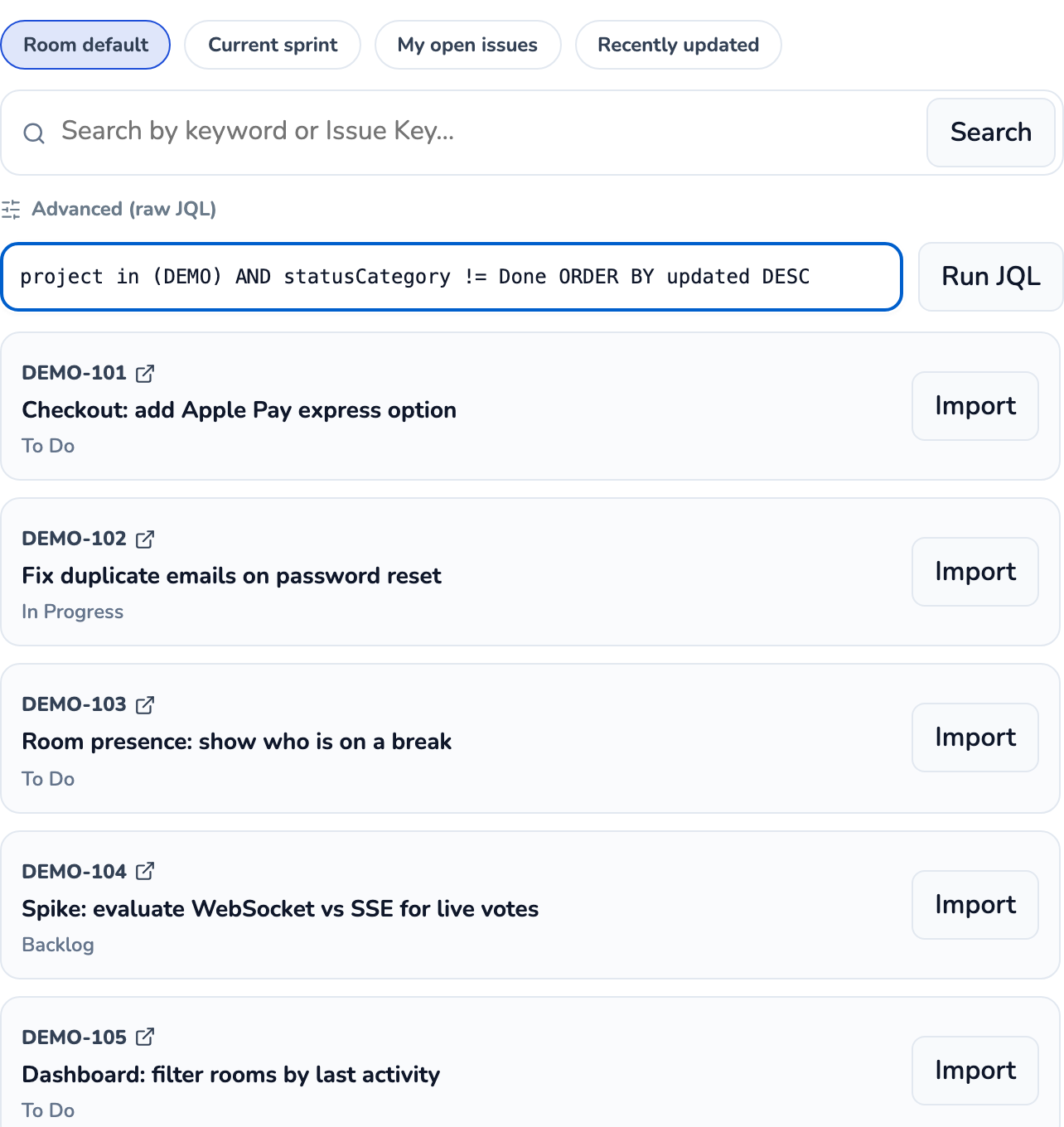
Connect Jira or Linear once, then bring a saved search, sprint, or individual issue into the Planning Room with its key, summary, description, priority, labels, and current estimate intact.

The queue stays tied to the source, so refinement starts from the backlog the team already trusts instead of a duplicate list assembled for the meeting.

Saved searches, rich issue context, and connected imports. Pro

The connected Jira search and import panel with issue results ready to add to a Planning Room.

5Story splitting

Break down oversized work while the context is fresh

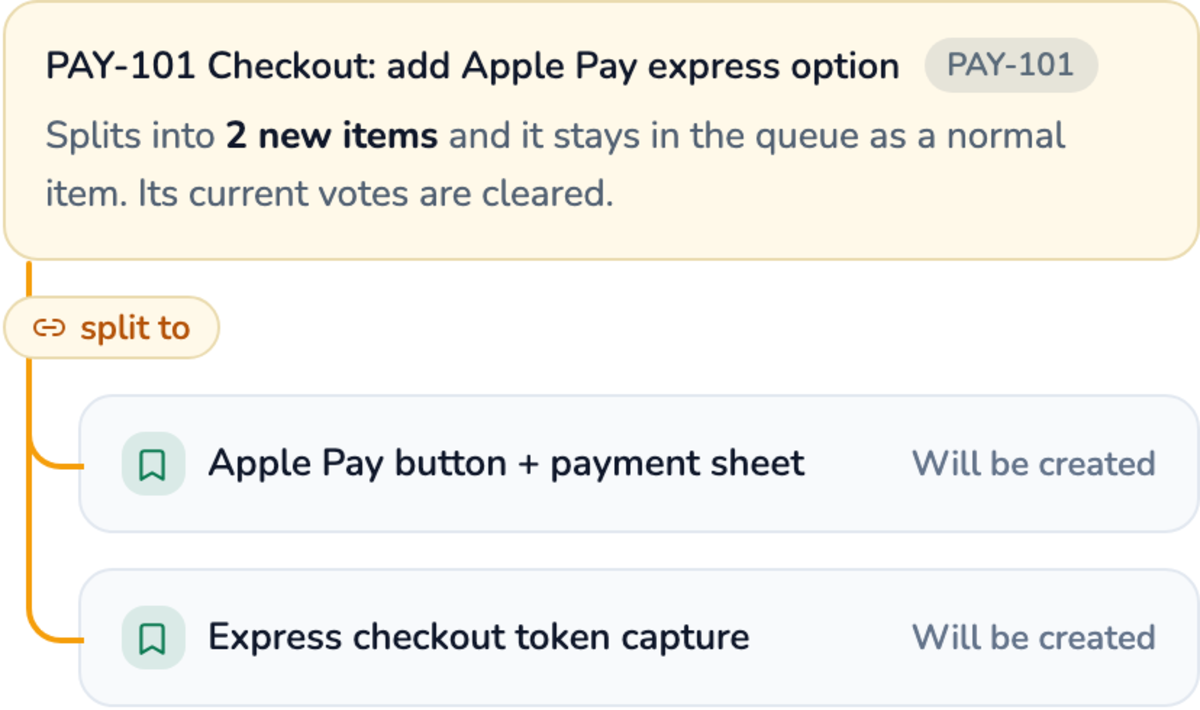
When a reveal shows that a story is too large, split it inside the room. Draft smaller child items, review the shape together, and keep them next to the original in the queue.

Local splitting works on every plan. In a connected Jira room, the same flow can create real child issues, link them to the parent, and preserve the relationship back in the backlog.

Create and link Jira child issues from the same flow. Pro

A story-splitting review showing one large work item branching into two smaller child items.

6Estimate write-back

Accept the decision and update the backlog before the room moves on

Once the discussion resolves, accept the team estimate and write it back to the connected Jira or Linear field. The work card shows whether the sync succeeded, failed, or still needs attention.

That closes the administrative gap between agreeing on a number and making the backlog reflect it — while everyone who made the decision is still present.

Jira and Linear estimate write-back. Pro

A connected Jira work item showing its accepted story points successfully synced.

7Session analytics

See how the team reached its estimates, not just the final numbers

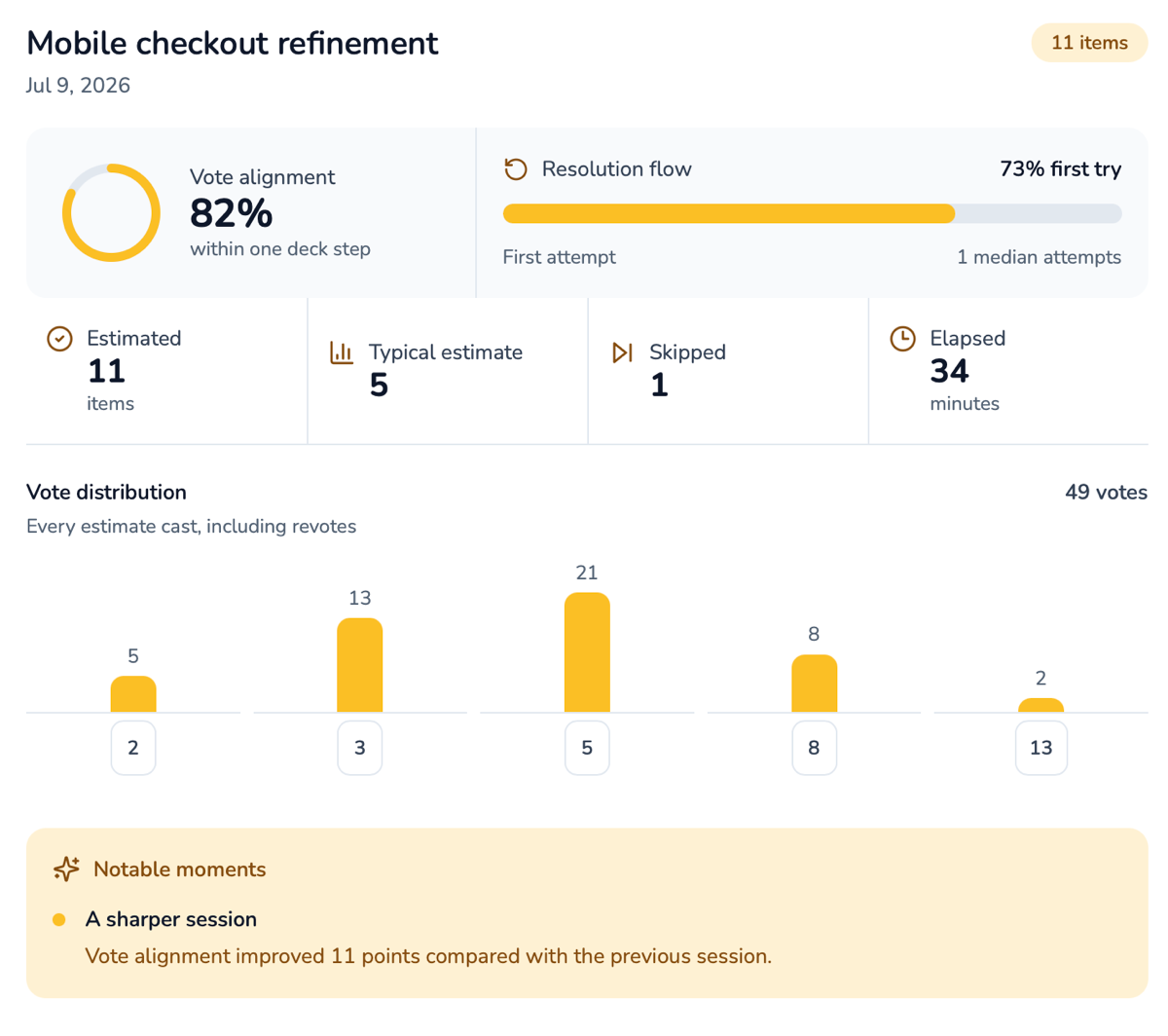
Session history tracks vote alignment, retries, estimate distribution, skipped items, and elapsed time so facilitators can see where refinement flowed and where it repeatedly stalled.

Cross-session trends can surface notable changes and give the next Retro Room grounded prompts without turning team behavior into an individual scorecard.

Historical trends and cross-session Retro Signals. Pro

Planning session analytics showing vote alignment, resolution flow, estimate distribution, elapsed time, and a notable trend.

FAQ

Planning Poker questions

Can teammates join without accounts?
Yes. Share the room link or code and participants can join, choose a role, and vote without creating an account.
Can we estimate asynchronously?
Yes. Open a voting window with a deadline so teammates can vote independently, then bring only disagreements back to a live discussion.
Does SprintBee connect to Jira or Linear?
On a Pro plan, a saved filter can bring issues into the room and accepted points can be written back before the session ends.
Is there a free version?
Yes. Free includes one persistent Workspace, unlimited participants, the complete core Planning Room, and the Retro Room beside it.
Where can I learn the planning poker technique?
The Planning Poker Guide explains the method, facilitation patterns, and why hidden voting improves estimates.

Estimate the work.
Keep the context.

Start with one free Workspace, or step into the Planning demo without signing in.