Set up a room before the meeting
Pick the deck, decide when voting opens, how the room is timed, when votes are revealed, and whether Dev and QA estimate separately — before anyone joins.
Five choices shape every round: which cards people vote with, when voting opens, how the room is timed, when votes become visible, and whether Dev and QA produce one number or two. Set them once and every session in the room inherits them.
The first moderator to enter a brand-new room sees a Customize your room prompt covering exactly these choices. Closing it accepts the defaults — Modified Fibonacci, voting open immediately, guided timeboxes for discussion and the conversation after the reveal, one team estimate, votes hidden until reveal, changes allowed after reveal — and nothing is lost: everything here can be changed later.
Before you start#
You need to be a moderator in the room to open Room settings, or a Workspace manager to edit the defaults from the dashboard. Every setting on this page works on every plan.
Set the defaults for the Workspace#
A Workspace has one Planning Room, so its defaults are that room's settings. Editing them from the dashboard is the way to prepare before anyone joins.
- Open your Workspace from the dashboard.
- Under Settings, choose Planning Room.
- Edit Estimation defaults — the same deck and voting questions the in-room settings show.
- Choose Save Planning Room settings.
Choose a deck#
Every participant votes from the room's deck. Six presets ship with SprintBee:
| Deck | Cards | Suits |
|---|---|---|
| Modified Fibonacci | 0, 0.5, 1, 2, 3, 5, 8, 13, 20, 40, 100, ? | The default. Half a point for trivial work, coarse jumps for large or uncertain items |
| Fibonacci | 0, 1, 2, 3, 5, 8, 13, 21, ? | Classic story points; widening gaps discourage false precision |
| T-Shirt Size | XS, S, M, L, XL, ? | Early discovery and roadmap-level sizing |
| Powers of Two | 1, 2, 4, 8, 16, 32, 64 | Each step is an unambiguous jump in effort |
| Sequential | 1–10 | Lightweight ranking rather than story points |
| Hours | 1, 2, 4, 8, 16, 24, 40 | Support work and well-understood tasks estimated in hours |
Customize the deck#
Choose Customize deck to edit the cards themselves. Type a value and add it,
or use the quick-add chips for ? (not enough information), ∞ (too large to
estimate responsibly) and Pass (opt out of this item) — they behave like any
other card.
- A deck holds at most 15 cards, each at most 4 characters.
- New numeric cards slot into ascending order; anything non-numeric is appended.
- Drag a card to reorder it, or use its left and right chevrons.
- Once the cards no longer match a preset exactly, the picker labels the deck Custom.
Decide when voting opens#
Two questions control the shape of a round.
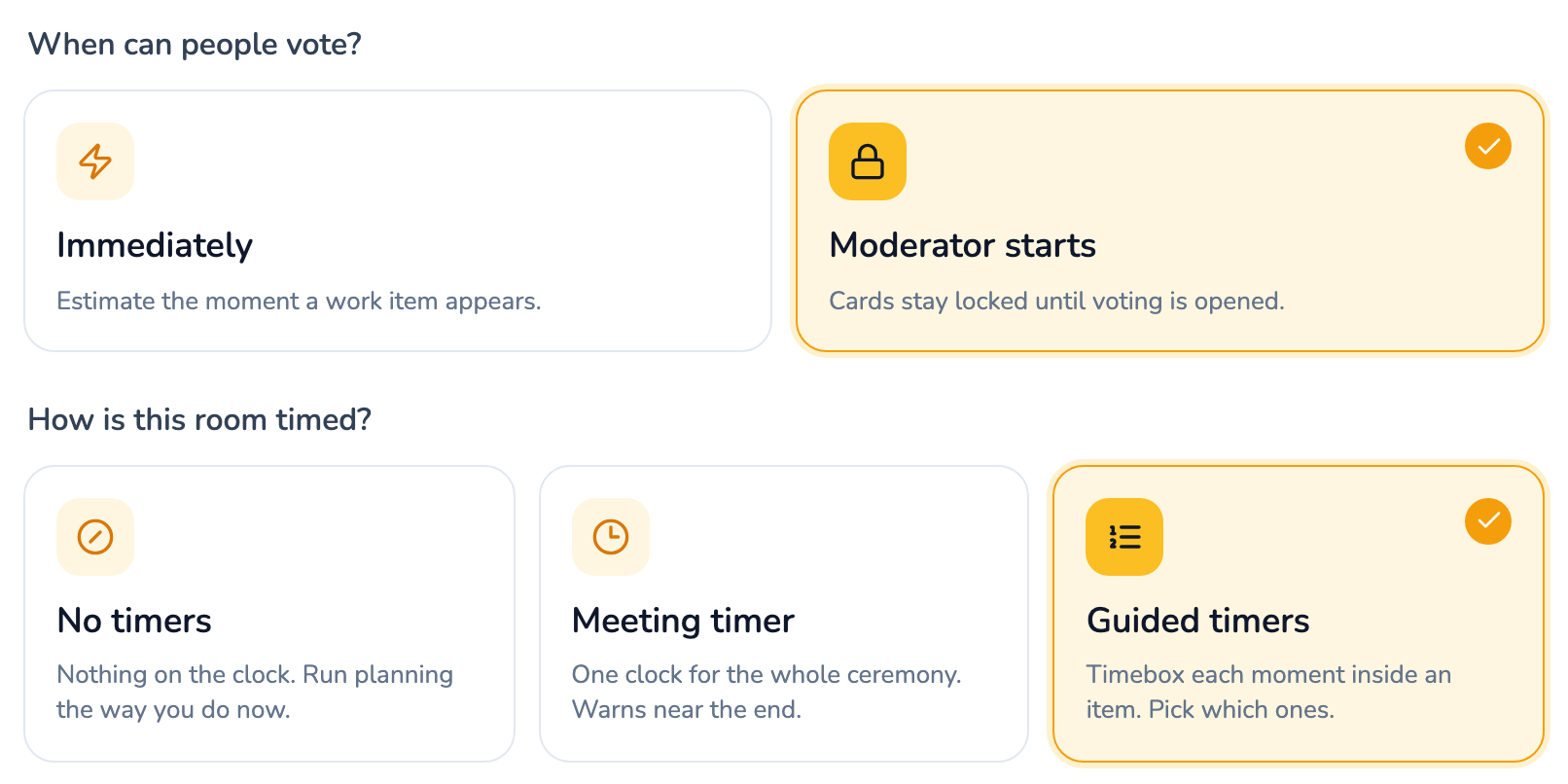
When can people vote? Immediately opens the cards the moment a work item appears. Moderator starts keeps them locked until you open voting, which is what you want when the team discusses an item before anyone commits to a number.
How is this room timed? No timers runs planning without a clock. Meeting timer puts one countdown in the room header for the whole ceremony. Guided timers gives each moment inside an item its own timebox — Discussion, Voting and More discussion — with a duration for each.
How the room is timed#
Picking a mode here is the whole timing decision, and the durations sit under the mode you choose. Only the voting timebox does anything at 0:00, and only while Reveal the votes at 0:00 is on.
Only a moderator can start, pause, extend or reset a clock, and none of them starts by itself unless the Discussion clock has been pinned. Time a planning session covers every mode, what each clock offers when it runs out, and what happened to rooms that used the old countdown.
Choose reveal and re-vote rules#
When are votes revealed? Hide until reveal is the anti-anchoring default — nobody sees a number until everyone commits. Show votes live puts each card on the stage as it is cast, which suits co-located teams who are talking anyway.
Change votes after reveal? Allow changes lets voters re-pick right up until the estimate is accepted, so a good argument during the discussion can move the number. Lock at reveal makes votes final the moment they are shown, and pushes disagreement into a fresh re-vote instead.
Estimate Dev and QA separately#
One team estimate has everyone converge on a single number. Separate by role collects a Dev estimate and a QA estimate for every item, and the moderator accepts one value for each.
Each participant picks their own voting role — Dev, QA or Observer — from their account menu in the room. Observers never vote in either mode. When the room estimates by role, an Included roles control next to the participant list lets a moderator drop Dev or QA from a single item: uncheck QA for a pure-refactor story and only the developers are asked for a card.
Change the setup during a session#
Open the Room menu in the room header and choose Room settings, which only moderators see. The Room settings tab holds the deck and the four voting questions; the Participants tab is where you grant moderator rights or remove someone. Choose Save room settings and the change reaches every participant immediately — no rejoin, no lost votes.
Connecting Jira, Linear or GitHub to the room is not done here. Work item sources and notifications are configured in Workspace settings under Integrations & notifications.
Last updated