The estimation round is the core loop in SprintBee: a moderator activates a work item, everyone votes privately, the room reveals together, and the team accepts a number. This page covers decks, casting a vote, the timer, revealing, and reading the results.
A round moves through the same basic shape regardless of which room settings you use: pick an item, talk through what it involves, vote privately, reveal everyone's card at the same time, discuss whatever surprised you, then accept a number and move on.
Voting privately before the reveal is what makes this useful. Nobody sees another vote until the reveal, so the first or loudest guess in the room can't anchor everyone else's number.
Choosing a deck
A moderator picks the room's deck when setting up voting, and can change it later from room settings. Every participant votes from the same deck.
Modified Fibonacci (0, 0.5, 1, 2, 3, 5, 8, 13, 20, 40, 100, ?) — the room default. Adds a half-point for tiny work and coarser jumps at 20, 40, and 100 for very large or uncertain items.
T-Shirt Size (XS, S, M, L, XL, ?) — rough relative sizing, useful for early discovery or roadmap-level estimates before details are ready.
Powers of Two (1, 2, 4, 8, 16, 32, 64) — an exponential scale with no question mark; each step is a clear jump in effort.
Sequential (1–10) — a simple linear range for lightweight ranking rather than story points.
Hours (1, 2, 4, 8, 16, 24, 40) — time-based buckets for support work or well-understood tasks estimated directly in hours.
Any deck can be customized instead of used as-is: add or remove cards, drag to reorder them, or start from a preset and adjust it. A deck can hold at most 15 cards, and each card value can be at most 4 characters, so a customized deck stays readable on the vote grid.
Three special cards are available as quick-add chips: "?" (not enough information yet), "∞" (too large or uncertain to estimate responsibly), and "Pass" (opt out of this item). They behave like any other card in the deck — adding one just adds another button to the vote grid.
Newly added numeric cards slot into ascending order automatically; non-numeric cards are added at the end. Once a deck's cards no longer match a built-in preset exactly, SprintBee labels it "Custom" in the deck picker.
Casting your vote
When it's your turn to vote, your available cards appear under "Your hand." Tap a card to cast that estimate — the card is marked "Your vote." Tap the same card again to retract your vote, or tap a different card to switch. You can also press a card's position on the keyboard, 1–9, to vote without the mouse.
Votes stay hidden from everyone else until the reveal (unless the room is set to show votes live — see below). While you're waiting, the stage shows who has voted and who hasn't, without showing what anyone chose.
You can change your vote as many times as you like before the reveal. After the reveal, whether you can still change it depends on a room setting: if the moderator has turned on "Allow changes," you can re-pick your card right up until the estimate is accepted; if the room is set to "Lock at reveal," your vote is final the moment the moderator reveals.
The timer
A room can run with or without a countdown timer — this is a moderator setting, independent of whether voting opens immediately or waits for the moderator to start it. Together they make four voting modes: voting opens immediately with a timer running in the background, a timer both opens voting and closes it, voting opens immediately with no timer and the round ends when everyone votes or the moderator reveals, or the moderator opens voting manually with no timer.
When a timer is in use, only the moderator can start, pause, or reset it, and set its duration from the timer's settings popover. A separate "Auto-reveal at 0:00" toggle controls what happens when time runs out: on, the round reveals automatically; off, the timer simply stops and voting continues until someone votes the last card or the moderator reveals manually.
In every mode, a round also ends the instant every eligible participant has voted, and the moderator can reveal at any time regardless of the timer. If the timer reaches zero with no votes cast, the stage shows "Time expired — no votes recorded" rather than revealing an empty round.
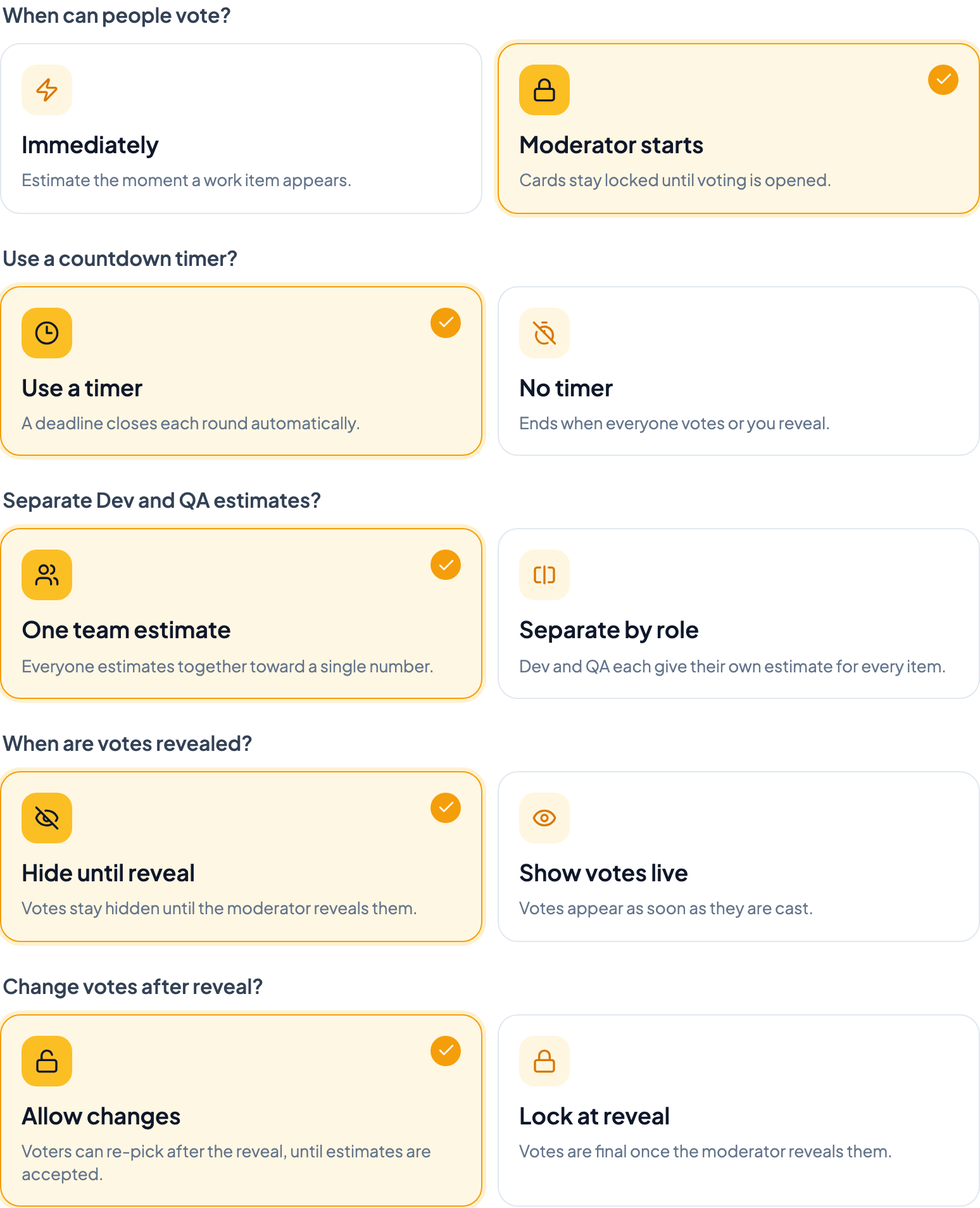
All of this is configured from room settings: when people can vote, whether a timer runs, whether Dev and QA are estimated separately, when votes are revealed, and whether votes can change after the reveal.
Room settings — the voting-preference choices that shape every round.
Revealing votes
The moderator can reveal at any point using "Reveal now," which is enabled once at least one vote has been cast. A reveal also happens automatically when every eligible participant has voted, or when the timer expires with auto-reveal turned on.
If the room is configured to show votes live instead of hiding them until reveal, votes appear on the stage as soon as they're cast rather than staying hidden — useful for co-located teams that don't need the anti-anchoring benefit of a blind vote.
Reading the results
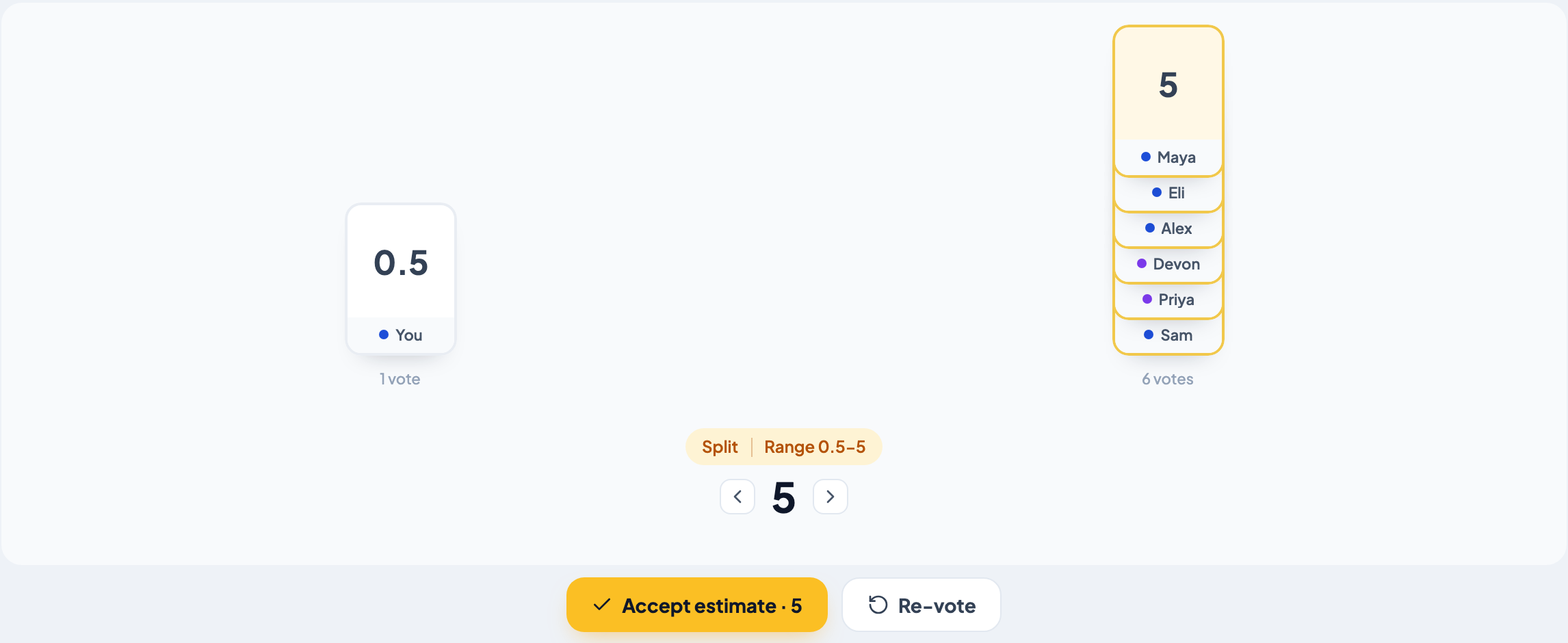
After the reveal, votes group into columns by value so you can see the full distribution at a glance, along with a status badge that summarizes how much the team agrees:
Consensus — every vote landed on the same card.
Split (with a Range, e.g. "Range 3-5") — votes are close together: either at least half the team chose the same card, or every cast value sits within two deck positions of each other.
Wide Split (with a Range) — votes are spread further apart than a Split, or someone voted off-deck.
No votes — nobody has voted yet.
A revealed round in the live demo — votes grouped by value with a Split badge.
Accepting an estimate
Only a moderator can accept. The Accept button defaults to the most common vote, but the moderator can step it up or down to any adjacent deck value before accepting — useful when the room wants to round toward the higher or lower neighbor rather than the exact majority.
If Dev and QA are estimated separately for an item, the moderator accepts one value for each — the button reads "Accept · Dev {value} · QA {value}." Otherwise it accepts a single team estimate. Accepting moves the round out of the active queue and into the room's history.
Instead of accepting, the moderator can choose "Re-vote," which clears the cast votes so the team can vote again on the same item without recording anything.
If the room has a connected Jira source with story-point write-back turned on, accepting an estimate also writes the accepted value to the mapped Jira field automatically.
Everything above describes a live round with everyone in the room at the same time. SprintBee also supports voting windows, where the team casts votes on their own schedule and the room only needs to meet live to talk through items that didn't reach agreement.
Async voting windows use their own consensus rule (exact match, adjacent cards, or off) to decide whether a round can auto-accept without a live discussion at all.